
Linux Disk Space Full? 7 Safe Checks to Find the Cause
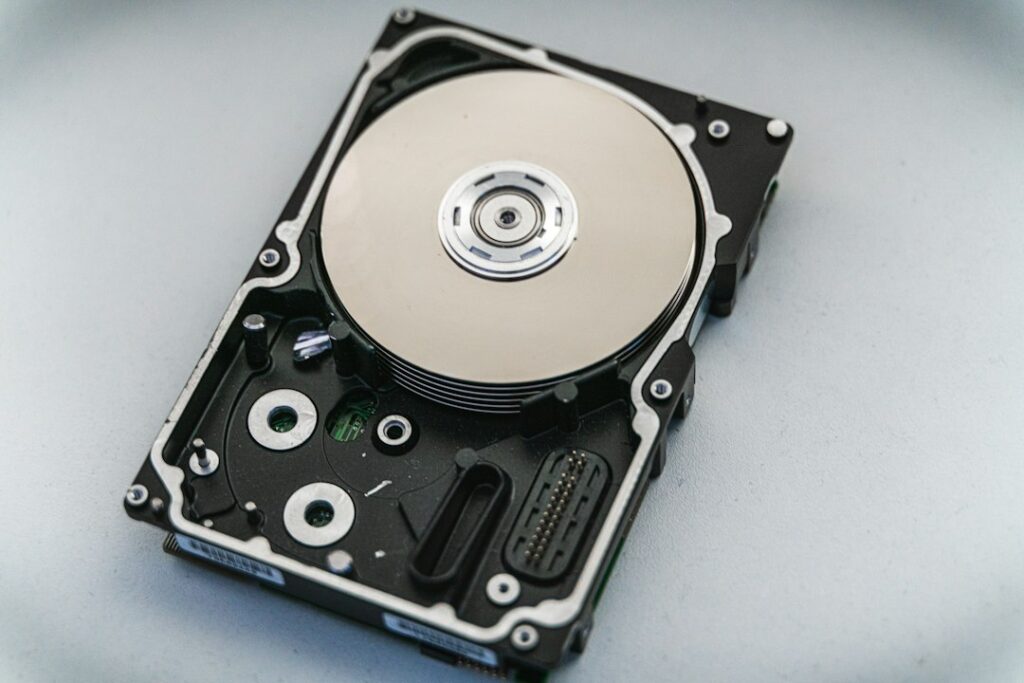
A Linux disk space full alert often arrives at an inconvenient moment: a deployment stops, an application cannot write a log, or a package installation reports “No space left on device”. The quickest useful response is to identify the affected filesystem and what is consuming it—not to start deleting the largest directory you can find.
This guide walks through seven checks for Linux servers using GNU command-line tools. Most steps inspect the system without changing it. Commands that use sudo require authorised access, and scanning a large directory can generate noticeable disk activity. Work on the affected path and avoid running repeated full-server scans during a busy incident.
1. Check disk space in Linux with df
df -hTLook at the filesystem, available space, usage percentage and mount point. The -h option shows readable sizes; -T includes the filesystem type.
If an application writes to /var/lib/myapp, check that path directly:
df -hT /var/lib/myappUse an existing path on your server in place of this example. The result helps you avoid cleaning the wrong disk. A full /var filesystem is not repaired by removing files from a separately mounted /home.
2. Check inodes when free space still appears available
df -iA filesystem can run out of inodes even when data blocks remain available. This can happen where a workload creates very large numbers of small files. Look for an unusually high inode-use percentage on the affected filesystem.
If the issue is a growing cache or spool directory, investigate why entries are accumulating. Removing one large archive will not solve a shortage caused by many small files. Use the owning application’s cleanup and retention process once the cause is clear.
3. Find the growing directory with du
df reports filesystem usage, while du estimates usage associated with files and directories. Start with a summary, then narrow the investigation:
sudo du -x -h --max-depth=1 /varOn GNU du, -x stays on the filesystem being examined, and --max-depth=1 limits the displayed summary to one directory level. It still needs to inspect the underlying directory tree, so the command may take time.
If /var/log is the large directory, inspect that path next:
sudo du -x -h --max-depth=1 /var/log
sudo ls -lh /var/log
Do not suppress permission errors while establishing the cause. An incomplete scan can make the totals misleading. On systems without GNU tools, consult the local manual because option names can differ.
4. Investigate a df vs du mismatch
If df shows a full filesystem but the visible files do not explain the total, check for deleted files that a process still has open. If lsof is available:
sudo lsof +L1This selects open files whose link count is below one. A service can continue holding space after a file has been unlinked. The process name, PID and file information help identify the owner.
Do not kill a process solely because it appears in this output. Review the service’s supported log-reopening or restart procedure and the effect on users. Releasing the final open reference can free the space, but the operational action should be deliberate.
Open deleted files are one explanation, not the only one. Mount boundaries, permissions, filesystem metadata and storage features can also affect comparisons. Make sure both measurements refer to the same filesystem and time.
5. Review logs and the systemd journal
On a system using systemd’s journal, inspect its reported storage:
sudo journalctl --disk-usageDecide what logs must be retained before removing them. An incident investigation, application requirement or organisational policy may determine that choice.
For recurring growth, configure an appropriate rotation or retention policy. Journal vacuuming operates on archived journal files; its result is not necessarily the same as the total reported by --disk-usage, which also includes active journal files. Avoid deleting arbitrary files from journal directories.
If a text log grows rapidly, fix the source too. Repeated application failures or excessive debug logging can refill the filesystem soon after a cleanup.
6. Inspect package caches and Docker storage separately
On Debian or Ubuntu, downloaded package archives may be one recoverable source of space. Check their size first:
sudo du -sh /var/cache/apt/archivesIf those cached downloads are not needed for an offline or recovery workflow, APT provides this cleanup command:
sudo apt-get cleanIt removes retrieved package files from the local cache, not installed applications. It only helps if that cache occupies space on the filesystem that is full. Other Linux distributions use different package managers.
For a server running Docker, use Docker’s own inventory:
docker system df
docker system df -v
Run these through your authorised Docker access method. Treat “reclaimable” space as a starting point for review, not permission to delete everything. Check which images, build caches and volumes are required by running services, upcoming deployments and rollback plans. Do not manually remove files from Docker’s storage directory.
For more context, see Docker security and operational checks.
7. Verify recovery and prevent the next full disk
After an approved cleanup or capacity change, check the affected filesystem again:
df -hT /var
df -i /var
Replace /var with the path you investigated. Then verify the application operation that failed. Free space alone does not prove that a stopped deployment, database or background task recovered.
Record the cause, the action and how quickly the directory was growing. Set monitoring that gives the team enough time to respond, and assign ownership for retention. If the data must be kept, additional capacity may be the correct solution.
A short incident checklist
- Identify the exact filesystem and failed application path.
- Check both block space and inodes.
- Trace growth to a specific directory or service.
- Investigate open deleted files where the totals differ.
- Confirm ownership and retention before cleanup.
- Verify the application and review the cause of growth.
Linux disk space full: frequently asked questions
How do I free disk space in Linux without deleting application data?
First identify the consumer. Package downloads, expired logs or obsolete build caches may be candidates, but each needs an ownership and retention check. If the files are required, expanding storage can be preferable to deleting them.
Why does Linux say “No space left on device” when df shows free space?
Check inodes and the actual destination filesystem. You may be inspecting a different mount from the path the application uses. Quotas and filesystem-specific conditions can also require investigation.
Why is disk space not released after deleting a log?
A process may still hold the deleted file open. Use lsof +L1 to investigate, then follow the owning service’s supported procedure. Avoid deleting more files without confirming the cause.
Related practical guides
- Ubuntu kernel panic: a practical troubleshooting guide
- Validate Apache configuration before applying changes
Official documentation
- GNU Coreutils: disk usage
- lsof command reference
- systemd journalctl reference
- Docker storage inventory
- Ubuntu APT command reference
Featured photo: Nick on Unsplash.
Leave a Reply