
Ubuntu Kernel Panic: 7 Steps to Diagnose Boot Failures
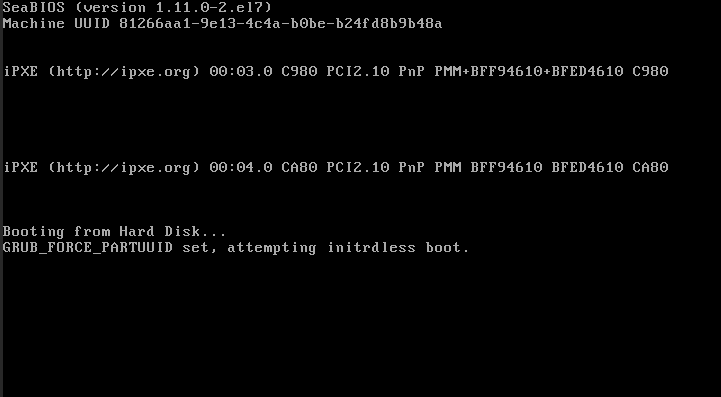
An Ubuntu kernel panic means the kernel reached a condition from which it could not safely continue. The line after Kernel panic - not syncing matters more than the phrase itself. A root-filesystem error, a failed init process and a hardware-related crash need different investigations.
Start by recovering access and preserving evidence. This guide covers a conventional Ubuntu installation with GRUB and initramfs-tools. Cloud images, encrypted disks, LVM, RAID and alternative boot setups can require different recovery steps. It is a diagnostic workflow, not a universal repair script.
1. Record the exact error and recent changes
Capture the console output before restarting. Note the complete panic message, kernel version, last successful boot, and anything changed shortly before the failure: packages, drivers, disks, firmware or VM settings. An early panic may never reach the disk journal.
For a remote server, use the provider’s serial or recovery console. Check that backups are available before modifying boot or storage configuration. If storage is reporting read errors and the data is important, prioritize a recovery copy over repeated repair attempts.
2. Try a previously working kernel
If GRUB offers Advanced options for Ubuntu, choose an older installed kernel’s normal entry. On many systems Shift during BIOS boot or repeated Esc during UEFI startup reveals the menu, but timing and firmware behavior vary. Use the documented console procedure for your platform.
If the older kernel boots, keep it installed while investigating. This narrows the problem to differences in the failed boot path; it does not prove the kernel itself is defective. A missing initramfs or incomplete package installation can produce a similar outcome.
If no installed kernel boots, use an Ubuntu live environment or the cloud provider’s rescue workflow. A chroot repair requires correctly identifying and mounting the installed root, boot and EFI filesystems. Avoid a generic mount sequence on encrypted, LVM or RAID storage.
3. Collect evidence from the working system
uname -r
cat /etc/os-release
lsblk -f
findmnt /
df -h / /boot
df -i / /boot
sudo dpkg --audit
journalctl --list-boots
These checks describe the running kernel, storage layout, free space, free inodes and incomplete package states. A full filesystem can interrupt an update even when the original symptom appears only at the next boot. If space is tight, use the Linux disk-space troubleshooting guide before changing boot files.
sudo journalctl -k -b -1 --no-pager
sudo tail -n 80 /var/log/apt/history.log
sudo tail -n 80 /var/log/dpkg.log
The previous-boot journal is useful only if that boot was recorded and retained. If it is missing, rely on console evidence and the package logs. Check current boot messages with sudo journalctl -k -b --no-pager as well.
4. Match the panic to a likely failure area
| Observed symptom | What to investigate first |
|---|---|
| VFS: Unable to mount root fs | Root-device availability, boot arguments, matching initramfs, storage drivers and recent disk changes. |
| Failure immediately after an interrupted upgrade | Package state, free space in /boot and completion of kernel installation hooks. |
| Crash after a third-party driver change | Driver compatibility, module-build errors and differences between working and failing kernels. |
| Random crashes under load | Kernel logs, hardware diagnostics, memory, storage and thermal evidence. |
| Attempted to kill init | The preceding error, init binary and userspace or filesystem damage; do not assume GRUB is the cause. |
A boot hang or emergency shell is not always a kernel panic. For example, a bad mount entry may cause an emergency-mode boot without a kernel crash. Use the actual message to choose the next check.
5. Repair an incomplete package installation only when confirmed
If dpkg --audit or the upgrade logs show an interrupted configuration, first resolve disk-space or repository problems. From the installed system booted with the working kernel, you can then complete pending package configuration:
sudo dpkg --configure -a
sudo apt-get -f install
These commands change the installed system, can run package hooks and may restart services. Read the proposed dependency changes before accepting them. Stop if the output reports storage errors, failed hooks or unexpected package removals; repeating the same command will not fix the underlying cause.
6. Rebuild a specific initramfs when evidence points to it
Use this step only if the failing kernel’s initramfs is missing or failed to generate, or a diagnosed driver/configuration change requires regeneration. Identify the exact installed target version; do not automatically use uname -r, which reports the working kernel you booted for recovery.
ls -lh /boot/vmlinuz-* /boot/initrd.img-*
ls /lib/modules
Set kernel_version to the exact target version shown on this machine. The placeholder is deliberately not a real kernel version:
kernel_version='REPLACE_WITH_EXACT_INSTALLED_VERSION'
test -f "/boot/vmlinuz-$kernel_version"
test -d "/lib/modules/$kernel_version"
Both checks must succeed. If an initramfs already exists for that version, update it:
sudo update-initramfs -u -k "$kernel_version"If the image is genuinely missing, use create mode instead of update mode:
sudo update-initramfs -c -k "$kernel_version"Choose one of those modes based on the file’s state. Check the command’s output for errors. On a GRUB-based installation, regenerate its menu after a successful repair:
sudo update-grubRebuilding an initramfs does not fix a failed disk, incorrect root-device identifier or every driver regression. Do not delete grubenv, remove the running kernel, or edit generated grub.cfg as a general panic fix. Keep console access available for the next test boot.
7. Verify recovery and keep a fallback
Restart during an approved maintenance window and select the repaired kernel if necessary. Once the system boots, check:
uname -r
findmnt /
systemctl --failed
sudo journalctl -b -p err --no-pager
Verify application health, network access, storage mounts and scheduled work. Keep the known-working kernel until the new boot path has been checked. Record which error disappeared and what change resolved it, so the next maintenance cycle starts with evidence.
Frequently asked questions
Can I fix a kernel panic by restarting repeatedly?
A restart alone may not address the cause. If the same error returns, preserve the output and use a working kernel or recovery environment to investigate.
Should I run fsck?
Only when filesystem evidence calls for it, using the correct tool for that filesystem and an appropriate unmounted recovery state. Never copy a repair command aimed at a guessed disk device. Filesystem repair can modify data and is not a routine response to every panic.
Can kdump help diagnose future crashes?
Yes, when supported and configured before the crash. Ubuntu’s kdump tooling can collect crash data for analysis, but it requires reserved memory and a tested configuration. Enabling it after a crash cannot reconstruct an unrecorded dump.
References and related guides
- Ubuntu recovery mode
- update-initramfs manual
- Inspecting initramfs content
- Ubuntu kernel crash dumps
- Ubuntu system restart required: reboot checks
- Booting a Linux ISO with GRUB
Leave a Reply