
How to Encrypt a USB Drive on Linux: 7 Safe Steps

A USB drive is small, useful and very easy to lose. If it holds client files, family photos or personal documents, anyone who finds it can read everything. This guide shows how to encrypt a USB drive on Linux using LUKS, the standard disk encryption format. You need about fifteen minutes, a drive you can erase, and a passphrase you will remember.
Table of contents
What is LUKS encryption?
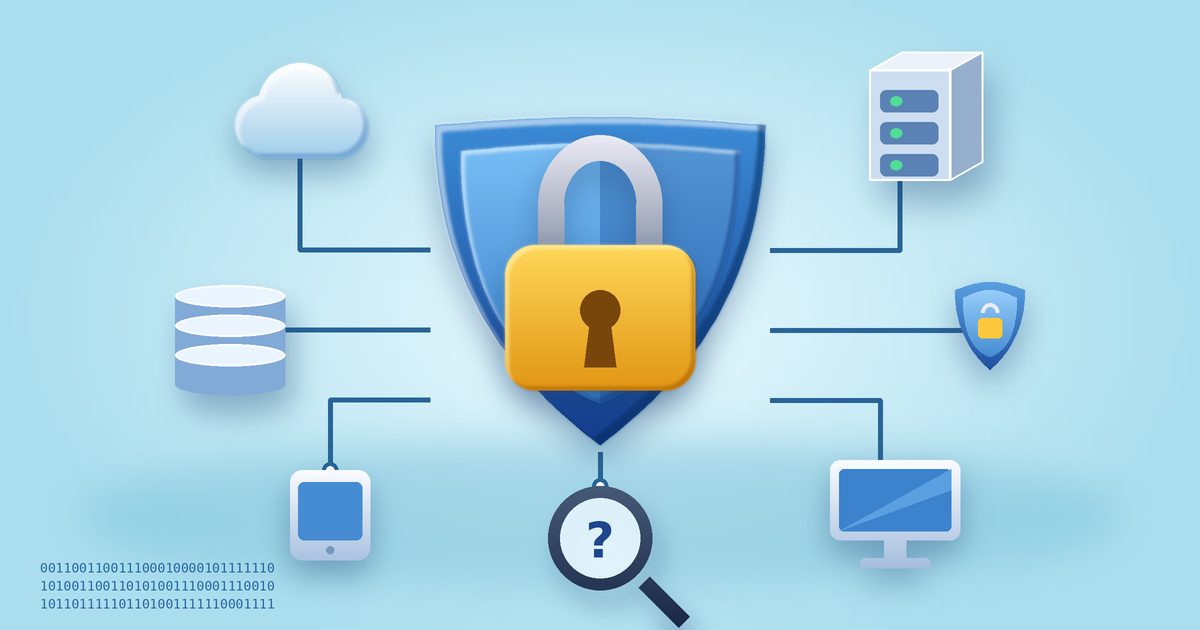
LUKS stands for Linux Unified Key Setup. It is the common way to encrypt storage on Linux, and cryptsetup is the tool you use to work with it. Once a drive is encrypted, it asks for a passphrase before it can be mounted. Without that passphrase, the contents look like random data. That is the whole idea behind how to encrypt a USB drive on Linux: you lock the contents, not just the drive.
Two limits are worth knowing. First, LUKS works natively on Linux, so Windows and macOS will not open the drive without extra software. Second, encryption protects a drive that is locked or lost. It does not protect files from malware while the drive is unlocked and in use. For the wider picture of protecting stored data, see our business data security checks.
Why encrypt a USB drive at all?
Think about where your drive travels: a bag, a train seat, an office desk, a courier parcel. Losing it is common, and a lost drive without encryption is an open book. With encryption, a finder sees an unreadable disk. This matters for freelancers, students and small teams in India who carry client work, certificates or scanned documents, and it takes only minutes to set up. Learning how to encrypt a USB drive on Linux is one of the cheapest security upgrades you can make.
Before you begin
- Back up the drive first. The method below erases everything on it.
- Know which device you are working on. Choosing the wrong one can wipe your main disk.
- Choose a strong passphrase. Use a few unrelated words that you can recall without writing them on the drive.
How to encrypt a USB drive on Linux: 7 safe steps
The commands below suit Debian and Ubuntu. Replace the values in angle brackets with your own. If you are new to Ubuntu commands, our Ubuntu setup guide shows the same calm, step-by-step style.

- Install cryptsetup. On Fedora, use
dnfinstead ofapt.sudo apt update sudo apt install cryptsetup - Identify the drive. Run the command once before plugging the drive in and once after. The new entry is your USB drive, for example
sdbwith a partition namedsdb1. Check the size matches your drive.lsblk - Unmount the partition. This avoids errors if the desktop mounted it automatically.
sudo umount /dev/<usb-partition> - Create the encrypted container. Type
YESin capital letters when asked, then set your passphrase. This erases the partition.sudo cryptsetup luksFormat /dev/<usb-partition> - Open the container. Enter your passphrase. The name you choose appears under
/dev/mapper.sudo cryptsetup open /dev/<usb-partition> <mapper-name> - Create a file system inside it. ext4 is a solid choice if the drive stays on Linux.
sudo mkfs.ext4 -L <drive-label> /dev/mapper/<mapper-name> - Mount it, use it, then lock it. Give your user ownership so you can write files without sudo.
sudo mkdir -p /mnt/<mount-folder>
sudo mount /dev/mapper/<mapper-name> /mnt/<mount-folder>
sudo chown "$USER": /mnt/<mount-folder>
When you finish, always lock the drive before pulling it out.
sudo umount /mnt/<mount-folder>
sudo cryptsetup close <mapper-name>
Many Linux desktops also offer a point-and-click option in the Disks app, where you can format a drive with LUKS. The result is the same format. As an optional extra, back up the LUKS header and keep the copy away from the USB drive, because header damage can make data unreadable. Treat that file as private, since it relates to your drive’s keys.
sudo cryptsetup luksHeaderBackup /dev/<usb-partition> --header-backup-file <backup-file>For a clear overview of LUKS on external storage, read the opensource.com guide to protecting external storage with LUKS.

Common mistakes to avoid
Most problems when you learn how to encrypt a USB drive on Linux come from a few avoidable mistakes.
- Picking the wrong device. Double-check with
lsblkevery time. This is the costliest mistake. - Skipping the backup. Formatting is permanent, so copy your files somewhere safe first.
- Forgetting the passphrase. LUKS has no back door. If you lose the passphrase, you should assume the data is gone.
- Pulling the drive while it is unlocked. Unmount and close it first to avoid damage and exposure.
- Expecting it to open on Windows. For cross-platform use, a tool such as VeraCrypt may suit you better.
- Treating encryption as a full backup. It protects privacy, not against a broken or lost drive. Keep a second copy. Our Docker security checklist makes the same point about repeatable, verifiable habits.
How to encrypt a USB drive on Linux: frequently asked questions
How to encrypt a USB drive on Linux without losing my data?
Not with the method above, which formats the partition. Copy your files elsewhere, encrypt the drive, then copy them back.
Is LUKS secure?
LUKS is open source, widely used and publicly reviewed. Its real strength still depends on your passphrase and your habits, which is why how to encrypt a USB drive on Linux is as much about care as commands, such as locking the drive and keeping your system updated.
Will encryption make my USB drive slow?
On modern computers the slowdown is usually small, though results vary by processor and drive. You can run cryptsetup benchmark to see how your machine performs.
Can I use the same drive on Windows or macOS?
Not natively. Third-party tools exist, but support varies. If you move between systems often, use a cross-platform format, and read the cryptsetup FAQ to understand the trade-offs.
Final thoughts
Knowing how to encrypt a USB drive on Linux gives you a small act of care for your future self. Back up first, choose the right device, protect your passphrase and lock the drive after use. Do those four things and a lost USB drive becomes an inconvenience instead of a worry.
What do you keep on your USB drives, and have you ever lost one? Share your experience in the comments.
Leave a Reply