
Certbot Not Renewing: 7 Easy Fixes That Work

Everything looks fine until a visitor sends you a screenshot of a red browser warning that says your site is not secure. Certbot not renewing is one of the quietest problems in web hosting, because the failure happens in the background and shows up only when the certificate expires. The good news is that the cause is usually simple and the fix takes a few minutes.
This guide walks you through seven checks in a sensible order. Run the commands on your own server, replace the values in angle brackets, and test with a dry run before you change anything.
Table of contents
What is Certbot auto-renewal?
Certbot is a free tool that gets and renews certificates from Let’s Encrypt. Those certificates last 90 days today. Let’s Encrypt has announced that the default will move to 64 days from 10 February 2027 and to 45 days in 2028, so renewal has to be automatic. You can read the plan in the Let’s Encrypt announcement.
Certbot normally installs a timer or a scheduled job that runs the certbot renew command regularly. The command renews only certificates that are close to expiry, so running it often is safe, as the Certbot documentation explains. When that scheduled job stops or fails, certbot not renewing becomes a countdown to an outage. A small gap like this is exactly what our business data security checks help you catch.
The typical signs of certbot not renewing are a browser message such as “Your connection is not private”, an error code like NET::ERR_CERT_DATE_INVALID, or an API client that suddenly refuses to connect. Because renewal runs in the background, you often learn about it from a visitor, not from your server. If that has just happened, do not panic. Most cases come down to one of the seven checks below.

Certbot not renewing: 7 easy fixes
- Confirm the problem. See what Certbot knows, then check what your server is actually serving.
sudo certbot certificates
echo | openssl s_client -connect <your-domain>:443 -servername <your-domain> 2>/dev/null | openssl x509 -noout -dates
If the first command shows a new expiry date but the second shows an old one, skip ahead to step 6.
- Check the renewal timer. The name depends on how you installed Certbot, for example
certbot.timerorsnap.certbot.renew.timer. If nothing is listed, renewal is not scheduled.systemctl list-timers | grep -i certbot sudo systemctl enable --now certbot.timer - Run a dry run. This tests the whole renewal using Let’s Encrypt’s staging system and prints the real error without touching your live certificate.
sudo certbot renew --dry-run - Make sure port 80 is reachable. The common HTTP challenge needs plain HTTP access from the internet. Firewalls, security groups and strict redirects often block it.
sudo ufw status curl -I http://<your-domain> - Check the renewal settings. Each certificate has a small file that records how it is renewed. A moved website folder or a changed web server can break it.
sudo cat /etc/letsencrypt/renewal/<your-domain>.confMake sure the authenticator and any webroot path still match your current setup.
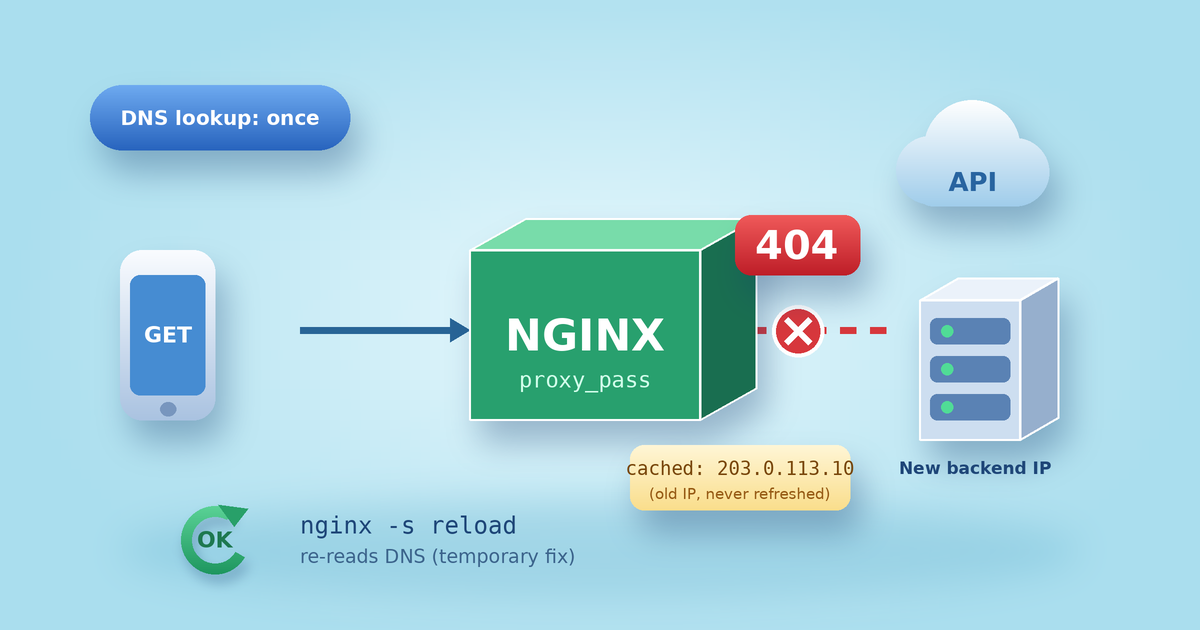
- Reload the web server after renewal. A new certificate can be saved on disk while the server keeps using the old one in memory. Add a deploy hook so the reload happens automatically.
sudo certbot renew --deploy-hook "systemctl reload nginx"Use
apache2instead ofnginxif that is your server. Once this works, place the same command in a script under/etc/letsencrypt/renewal-hooks/deploy/. - Update Certbot, then add monitoring. Old versions can fail when Let’s Encrypt changes how it works. Update using the method you installed with, then set an alert for expiry.
sudo apt update && sudo apt install --only-upgrade certbot
sudo snap refresh certbot
Use only the line that matches your installation.

Monitoring is the habit that saves you next time. Our Kubernetes observability guide explains the idea of watching signals before users notice a problem, and it applies equally to a single small server.
Mistakes that keep certbot not renewing
- Forcing renewal again and again. Let’s Encrypt currently limits duplicate certificates to five per week. Use
--dry-runfor testing instead of--force-renewal. - Installing Certbot twice. Having one copy from the package manager and another from snap can leave two competing jobs.
- Hard-coding a renewal day. A cron job that renews exactly every 60 days will break as certificates get shorter. Let Certbot decide when renewal is due.
- Blocking validation with a firewall or proxy. A CDN rule or a restrictive DNS CAA record can stop Let’s Encrypt from issuing.
- Waiting for a reminder. Do not assume a warning will reach you in time. Add your own expiry check.
Treating certificates as part of everyday engineering, not a one-time task, is the heart of DevSecOps. If you run containers, our Docker security best practices give you a similar set of repeatable checks.
Certbot not renewing: frequently asked questions
Why is Certbot not renewing automatically?
In most cases of certbot not renewing, the usual causes are a stopped timer, a blocked port 80, a changed web server or folder path, or an outdated Certbot. The dry run in step 3 normally points to the exact reason.
How do I renew a certificate manually?
Run sudo certbot renew. If the certificate is not yet due, Certbot says so and does nothing, which is safe. It is the quickest way to rule out certbot not renewing as a one-off glitch.
How long do Let’s Encrypt certificates last?
Currently 90 days. The plan is 64 days by default from February 2027 and 45 days in 2028, so automation matters more every year.
Is it safe to use --force-renewal?
Only occasionally. Repeated use can hit rate limits and leave you unable to issue a certificate for a few days.
Final thoughts
A certificate that renews quietly is a sign of a healthy setup, and fixing certbot not renewing is mostly a matter of patient checking. Check the timer, test with a dry run, reload the server and keep an eye on expiry. Ten calm minutes now can spare you a stressful evening later.
What caused your renewal to fail, and which fix finally worked? Tell us in the comments so other readers can learn from it.

Leave a Reply